
Squarespace is one of the nicest ways to put a brand online. Its templates look good out of the box, and plenty of shops make their first sales there. But once selling becomes the core of the business, many owners want deeper commerce tools, a bigger app ecosystem and a checkout built only for selling. That is usually when the Squarespace to Shopify question comes up.
The move is very doable, but it is more hands-on than most. Squarespace has no one-click export to Shopify. Product and customer files need editing before Shopify will accept them, some data can't be exported at all, and your blog has to be rebuilt. This guide is the plan we follow. Every limit below comes from Shopify's Squarespace migration guide and the Squarespace Help Center, checked on November 2, 2026.
Why brands move from Squarespace to Shopify
The reasons we hear most from Squarespace store owners are:
- Commerce depth. Shopify is built only for selling, with inventory across locations, B2B, Markets for selling abroad, and a checkout that millions of shoppers already use.
- Apps and integrations. Most subscription, loyalty, reviews, shipping and ERP tools build for Shopify first.
- Room to grow. Shopify Plus, headless builds and multi-store setups are there when the business needs them, without another platform change.
If your site is mostly a portfolio, a blog or bookings with a few products on the side, Squarespace may still be the better fit. A migration pays off when products are the business. We compared two similar builders in Shopify vs Wix, and most of the same trade-offs apply here.
What moves from Squarespace to Shopify, and what doesn't
Shopify's guide lists five kinds of data most Squarespace stores move: products, customers, historical orders, reviews, and blog posts and pages. Each one moves differently.
| Data | How it leaves Squarespace | How it gets into Shopify |
|---|---|---|
| Physical and service products | Products CSV, up to 10,000 products. No featured images, variant images, image alt text or "additional information" | Edit the CSV into Shopify's product template, then import it |
| Digital products, gift cards | Not in the product export | Recreate them in Shopify |
| Customers | Contacts CSV. No notes or saved addresses, except the address on the latest physical order | Edit into Shopify's customer template (there is no column mapping), then import. Passwords don't move. |
| Order history | Orders CSV, filtered by status and date | Third-party apps such as EZ Importer |
| Reviews | Can't be exported | Collect new ones, or rebuild a CSV for a reviews app such as Judge.me, Loox or Yotpo |
| Blog posts and pages | WordPress .xml only, and only one blog page | Shopify can't import that file, so copy posts and pages across by hand or with an app |
Two things surprise most owners. First, there is no free "Store Migration" shortcut for Squarespace as there is for some platforms, so the product CSV needs real editing. Second, the content side (blog, pages, images) is often the biggest part of the job, not the products.
Step 1: Export and reshape your product CSV
In Squarespace, open Products & Services > Products and click Export all. Then rebuild the file in Shopify's product CSV format. The columns that need the most care:
| Squarespace column | Shopify column | What to change |
|---|---|---|
| Product URL | URL handle | Squarespace fills it only on a product's first row. Copy it to every variant row so Shopify groups them as one product. |
| Categories | Type | Exported as paths like /clothing/blouses. Replace each with one type, such as Blouses, then build collections after import. |
| Weight | Weight value (grams) | Multiply pounds by 453.6, or kilograms by 1,000. |
| Sale Price and On Sale | Compare-at price | Where On Sale is Yes, move Price to Compare-at price and Sale Price to Price. |
| Visible | Published on online store | Yes becomes true, No becomes false. |
| Hosted Image URLs | Product image URL | One image per row. Add a row for each extra image. |
Option Name and Option Value 1 to 3 map straight to Shopify's Option1 to Option3, and SKU, Title, Description and Tags need no change. Remove every other Squarespace column. When you import in Products > Import, untick Publish new products to all sales channels so nothing goes live before you have checked it.
Because images come in from Squarespace-hosted URLs, keep the Squarespace site active until the import is finished and checked. Then add the featured images, variant images and alt text that the export leaves out. Alt text matters for both accessibility and image search, so don't skip it.
Step 2: Customers, orders and reviews
Customers. Export from Contacts, then copy the data into Shopify's customer CSV template. Shopify has no column mapping for customer imports, so the headers must match exactly. Accepts Marketing becomes Accepts Email Marketing (yes or no), shipping fields become the Default Address fields, and you need to add a country ISO code column that Squarespace doesn't export. Passwords never transfer between platforms, so plan a short email telling customers how to sign in to the new store.
Order history. Export from Orders > Export data. To move only past orders, select fulfilled orders and a date range that covers them. Shopify doesn't import orders from a CSV on its own, so use an app. Shopify's guide names EZ Importer, and Cart2Cart offers a Squarespace to Shopify migration service.
Reviews. Squarespace can't export them. Some review apps import a CSV you build yourself. Otherwise, start collecting fresh reviews from day one.
Step 3: Rebuild your blog and pages
Squarespace's site export creates a WordPress .xml file. It includes layout pages and one blog page with its posts, but not store, index or portfolio pages, video or audio blocks, drafts or custom CSS. Shopify can't import the file either way, so treat content as a rebuild:
- List every page and post that earns traffic or links (Search Console and your analytics will tell you), and move those first.
- Recreate each post in Online Store > Blog posts with the same title, meta description and images, and add alt text.
- Use the move to merge or retire thin, outdated pages. Shopify's own guide calls a migration "a good time to purge old, low-performing content". Every page you retire still needs a redirect.
Build the URL map before you switch the domain
Squarespace and Shopify use different URL patterns, so almost every URL changes. In Squarespace 7.1, product pages always include /p/ after the store page slug. Blog posts start with the blog page slug and follow your post URL format, which can include the date. Shopify uses fixed prefixes.
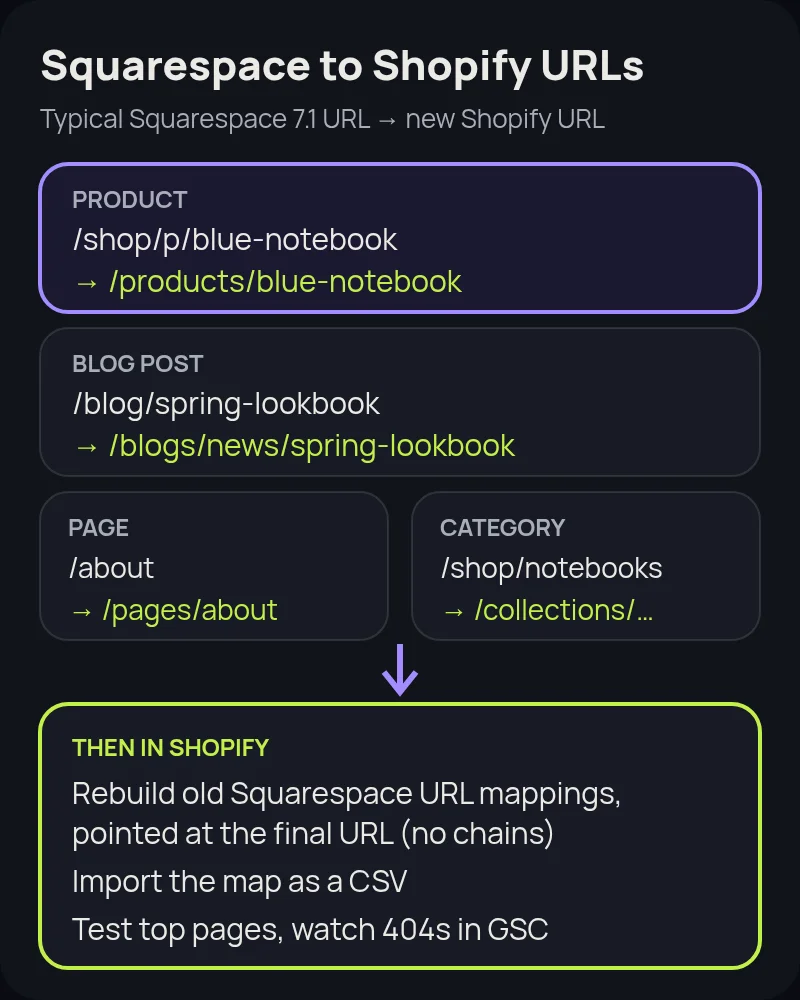
To keep rankings:
- Crawl the live Squarespace site and export your sitemap so you have every URL, including product, category and blog URLs.
- Map each one to its new Shopify URL in a spreadsheet with two columns: Redirect from and Redirect to.
- Check Settings > Advanced > URL Mappings in Squarespace. Those redirects stop working once the domain points at Shopify, so add them to your map and point them straight at the final URL to avoid chains.
- Import the map into Shopify's URL redirects before launch, then test your top pages.
Our Shopify migration SEO checklist covers the rest: titles, meta descriptions, canonical tags, structured data and what to watch in Search Console after launch.
Moving a domain you bought from Squarespace
If your domain is registered with Squarespace (this includes domains that came over from Google Domains), you can either connect it to Shopify and keep it at Squarespace, or transfer it. Connecting is faster and is what most stores do on launch day.
To transfer it away, open the domains dashboard, switch off Domain Lock, remove DNSSEC if you added it, and click Request transfer code. Squarespace emails the code to the domain's registrant contact, usually within 24 hours, and the transfer can take up to 15 days. Squarespace may lock a domain for 60 days after you register it, transfer it in or change its contact details, and you can't transfer it until the lock ends. Record your DNS settings first, because most hosts can't keep them during a transfer. Transferring the domain doesn't cancel your Squarespace site, so cancel that separately once the new store is stable.
Squarespace to Shopify migration, step by step
- Audit. Count products, variants, customers, orders, pages and posts. Note digital products, gift cards, subscriptions and integrations.
- Set up Shopify. Pick a plan and theme, and set up payments, shipping and taxes.
- Move products. Export, reshape the CSV, import unpublished, then add images, alt text and collections.
- Move customers and orders. Customer CSV in Shopify's template, orders through an app.
- Rebuild content. Pages and blog posts, with titles and meta descriptions.
- Redirects. Import the full URL map, including old Squarespace URL mappings.
- Test. Place test orders, including a refund, and check emails, taxes and shipping rates.
- Launch. Connect or transfer the domain, set it as primary, submit the new sitemap in Search Console and watch for 404s.
Common mistakes to avoid
- Importing the raw Squarespace CSV. It needs reshaping first, and variant rows without a URL handle import as separate products.
- Cancelling Squarespace too early. Product images import from Squarespace-hosted URLs, and you may need old data later.
- Forgetting the second blog. The site export only includes one blog page.
- Losing old redirects. Squarespace URL mappings don't carry over. Rebuild them in Shopify.
- Skipping weights and sale prices. Wrong weights break shipping rates, and unmapped sale prices show the wrong price.
- Not measuring. Record conversion rate, average order value, organic traffic and top rankings before the move so you can prove it worked.
How Startup Slang helps
We have guides for moving to Shopify from Wix, BigCommerce, WooCommerce, Magento and Salesforce Commerce Cloud. A Squarespace move is usually smaller in data but heavier in content, and the same rules apply: a clean data model, careful variants and a complete redirect map. Our Shopify migration team handles the audit, theme, data, content and redirects from our offices in Toronto and Montreal. If you are still deciding, our Shopify agency team can help you choose a plan and a build approach.
Frequently asked questions
Can I migrate from Squarespace to Shopify without losing SEO?
Yes, if you plan redirects. Squarespace 7.1 product URLs include /p/ and blog posts sit under your blog page slug, while Shopify uses /products/, /collections/, /pages/ and /blogs/, so most URLs change. Map every important old URL to its new Shopify URL, rebuild any old Squarespace URL mappings so they point at the final URL, and import the redirects into Shopify before you switch the domain.
Is there an app that moves Squarespace to Shopify automatically?
Not a free official one. Shopify's Store Migration app is listed as not currently available, so most stores move products with Shopify's product CSV import after reshaping the Squarespace export. Paid tools such as EZ Importer (for orders and other data) and migration services such as Cart2Cart can handle more of the work.
What doesn't Squarespace export?
The product export leaves out featured images, variant images, alt text, additional info and reviews, and it doesn't include digital products or gift cards. The site export is a WordPress-format XML file that includes only one blog page, and Shopify can't import it directly.
How many products can Squarespace export?
Squarespace's product export covers up to 10,000 physical and service products in one CSV. Digital products, gift cards and product reviews aren't included.
Can I move my Squarespace customers and order history?
Yes. Export customers as a CSV, add a country ISO code column and match Shopify's customer CSV headers, because Shopify doesn't offer column mapping for customer imports. Export orders by status and date range, then bring them in with an app such as EZ Importer. Passwords never transfer, so tell customers before launch how to sign in.
How do I move a domain I bought from Squarespace?
You can keep it at Squarespace and point it to Shopify, or transfer it. Turn off domain lock, remove DNSSEC, and request a transfer code, which Squarespace emails to the registrant. Transfers can take up to 15 days, and a 60-day lock applies after registration, a transfer or a contact change. Record your DNS records first, and cancel the Squarespace site subscription separately.
How long does a Squarespace to Shopify migration take?
It depends on catalog size, variants, content and apps, not just product count. A small catalog with a short blog can move in a few weeks. Stores with many posts, complex variants or integrations take longer. We give a timeline after a short audit.